Convert an Image into a Bead Pattern with Miyuki Delica or Artkal fuse colours
Beadalia converts an image into an editable bead grid and maps every cell to a colour from the catalog you choose — Miyuki Delica for seed beads, Artkal S, C or M for fuse beads. Create a free account to convert and apply one photo to the editor. Adjustments to that same photo stay free; a subscription unlocks additional photos.
One free photo conversion per account. No card required. Pro is €70, $80, or 350 RON a year, billed annually.
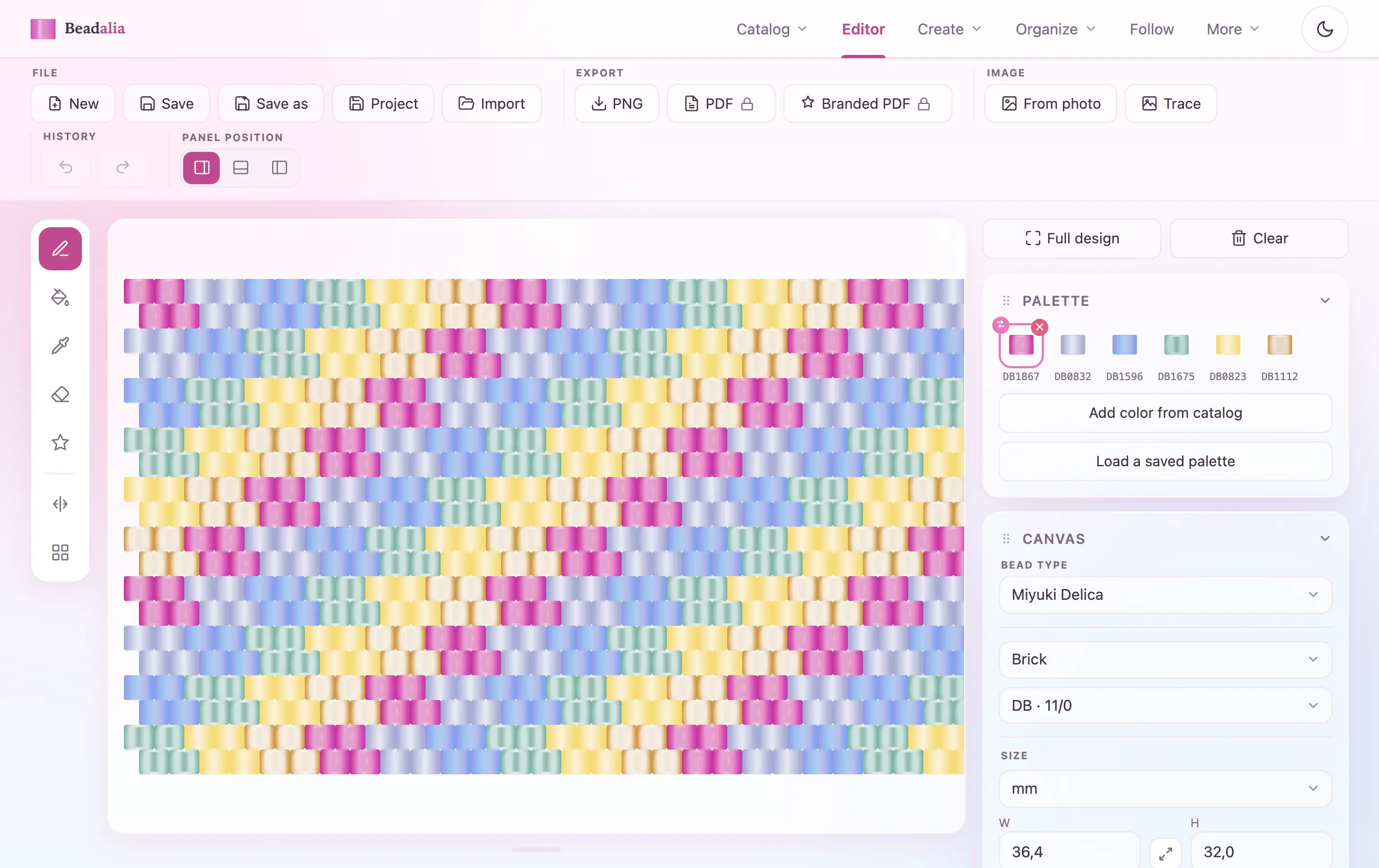
From an image to a bead grid, in five steps
Start with a free image preview. It opens the image tool using your current canvas catalogue. To change bead family or stitch first, close the preview and use the editor controls.
Set the bead family and catalogue on the canvas
This is the one thing to do first. The canvas decides which catalogue the image is matched against, and the dialog shows it back to you rather than offering a second place to choose. Seed beads match into Miyuki Delica at the size the editor is set to; fuse beads match into the Artkal series the canvas is on — S, C or M.
Upload the image
Choose an image from your device. A clear subject and a simple background make a useful starting point. Create a free account to try one photo. No card required.
Convert
Say whether you are converting a photo or a drawing, set how wide the piece should be in beads, and convert. Every cell comes back as a real manufacturer code, not an anonymous colour.
Edit the result
Sign in with a free account to open the preview. Click a colour in the legend to replace it everywhere, or a bead in the grid to change that one cell. Apply writes the grid onto the editor canvas and uses your one free photo conversion. You can keep adjusting the same photo and edit the pattern afterward. A subscription is required for another photo.
Follow it while you bead
Follow reads the finished pattern back row by row and keeps your progress. It is free and needs no account.
What is free, and what does Pro unlock?
With a free account, you can convert one photo, compare colour counts, inspect the whole grid and recolour it. Edit mode is “All alike” or “One bead”: click a colour in the legend to swap it everywhere, or a bead in the grid to change that cell. The swap dialog suggests nearby codes, marking the ones you already own if they are in your inventory.
Your first successful Apply is free with an account. It uses your single free photo conversion; failed attempts do not use it. You can reuse the same original photo and keep editing your pattern. Additional photos require Pro. Pro also includes unlimited saved designs, shop-branded PDF exports, and production-cost tools. Compare plans and choose your billing period.
Trace, next to From photo, is a different tool: it places the image behind the grid so you can paint over it by hand. It runs no colour matching and it is not gated by Apply.
Which colours the converter can use
The converter never invents a colour. It picks from a candidate list the canvas supplies, so what comes out is always a bead you can actually buy — and for Artkal, only codes the manufacturer has published an RGB value for. A colour nobody measured is never put into your pattern.
Seed beads — Miyuki Delica
Candidates are Delica beads at the size already set on the editor: 11/0, 15/0, 10/0 or 8/0. Bead size is not a photo control; it belongs to the canvas.
Fuse beads — Artkal S, C or M
Candidates are the Artkal series the canvas is on, limited to colours with a published RGB value. Fuse patterns are a square pegboard grid.
How a pixel becomes a bead
Everything happens in one perceptual colour space, OKLab: the image is reduced by weighted k-means, each resulting colour snaps to its nearest available bead, and every opaque pixel is then assigned. Transparent pixels stay empty cells.
Swatches on screen are synthetic renders generated from the colour value, glass type and finish — not photographs of beads — so a metallic or AB finish looks different in hand. MIYUKI and Delica are registered trademarks of MIYUKI Co., Ltd. (Japan); Artkal is a trademark of its owner. Beadalia is independent and is not affiliated with, sponsored or endorsed by either.
Settings
These controls live in the photo dialog and change the conversion, not the editor's drawing tools. All of them stay editable after a conversion, and re-converting the same original photo stays free.
What are you converting?
“A photo” or “A drawing or illustration”. The answer sets a starting point for the other controls rather than locking anything: a drawing widens a narrow canvas to 40 beads and turns background removal on, because a flat backdrop behind a subject is a different problem from a photograph.
Beads wide and beads tall
1 to 300 on each side. Width opens at 120 beads, or at whatever you last chose on this device. With “From photo proportions” on, height fills in from the image — including the real cell shape — so the piece is not stretched. The image covers the grid and the overflow is cropped.
Number of colors
6, 8, 12, 16, 24, or All; the default is All. All skips the colour cap and maps each opaque pixel to its nearest bead, which can mean a great many codes — a warning appears when the palette grows large enough to be hard to buy and to follow.
Compare colour counts
Up to three previews side by side — Fewer, Chosen and More — each showing the colour count and the bead count for that option. Photographs benefit from more colours; illustrations usually work better with fewer.
Color source
“Whole catalog”, “A category”, or “Only inventory”. The whole catalog is the default. Category applies to seed beads; on an Artkal canvas the choice is the whole series or only your inventory, because Artkal publishes no colour families to filter by.
Blend with speckles (dithering)
Off by default. It can look closer on screen, but it creates many more colour changes along a row, which is harder to follow while you work.
Merge rare colours
On by default. A code used by 5 beads or fewer, or under 0.5% of the cells, folds into its nearest neighbour when that neighbour is close enough in colour to stand in for it — so you are not buying a full tube for five beads. A rare colour with no cheap replacement is kept. Turn it off for freckles or eye catchlights.
Remove background
Off by default, on for a drawing. It leaves the cells around the subject empty instead of filling them with beads. If there is no flat background to find, the image is left unchanged and it tells you so.
Contrast and brightness
Both apply to the image before any colour matching happens, so you are adjusting what the converter sees rather than correcting its output afterwards.
Width is where detail is won or lost. Below about 35 beads across, a small feature such as an eye is narrower than a single cell and cannot survive any amount of colour tuning. With Remove background on, the dialog says so rather than letting you wonder which setting went wrong. For a face, 40 beads or more.
Image to bead pattern, in short
Which bead colours can it convert into?
Whichever catalogue the canvas is set to: Miyuki Delica at the editor's current size for seed beads, or Artkal S, C or M for fuse beads. You choose that on the canvas before converting — the dialog shows the target catalogue rather than offering a second place to pick it.
Can I convert an image to a bead pattern online for free?
Yes: create a free account to convert and apply one photo, with no card required. Adjustments to the same original photo stay free. A subscription unlocks additional photos. Pro is €70, $80, or 350 RON a year, billed annually.
How many colours can I use?
6, 8, 12, 16, 24, or All. The default is All, and a three-way comparison shows you what fewer and more would look like before you commit.
Can I change colours before I pay?
Yes. In the preview you can swap a colour everywhere or change a single bead, choosing from suggested nearby codes. After Apply you recolour in the editor like any other design.
How are pixels matched to beads?
In OKLab, one perceptual colour space end to end: the image is reduced by weighted k-means, each resulting colour snaps to the nearest available bead, and every opaque pixel is assigned. The converter picks only from beads the canvas's catalogue supplies, and for Artkal only from colours with a published RGB value.
What image files can I upload?
The picker accepts image files (`image/*`), and the browser has to be able to decode the file. If it cannot, you get a toast — the app ships no separate decoder, so whether a given HEIC, AVIF or SVG loads depends on your browser.
How big should the pattern be?
Between 1 and 300 beads on each side. Detail is a function of width: below about 35 beads across, features smaller than one cell cannot survive. With Remove background on, the dialog warns you. For a face, try 40 beads wide or more.
Can I match only beads I already own?
Yes. For Miyuki Delica the colour source can be the whole catalogue, one category, or only your inventory. On an Artkal canvas you can match the whole series or only your inventory — there is no category option, because Artkal publishes no colour families. The whole catalogue is the default either way.
Ready to convert an image into beads?
See how your own image looks in real bead colors before choosing a plan. Create a free account for one free photo conversion, including Apply and adjustments to that same photo. Subscribe to convert more photos.
Try one photo freeRuns in the browser. No install.